
DeskJoin Screen ยท damaged iMac display

Broken iMac screen? Use a Windows notebook.

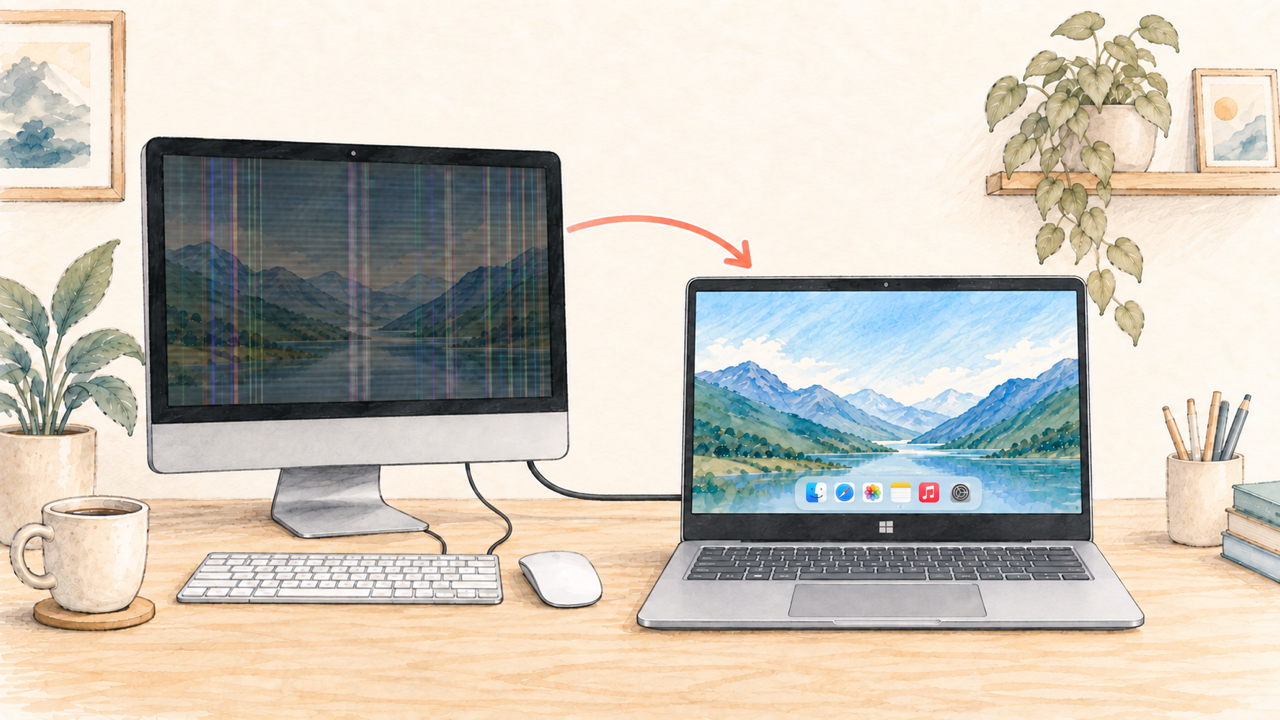
If the iMac still works but its screen has stripes, flicker, or distracting panel damage, mirror its desktop to a Windows notebook. Turn the iMac brightness down, place it to the side, and continue using the keyboard and mouse connected to the iMac.

A dim iMac with vertical screen lines mirrored clearly to a Windows notebook while the keyboard and mouse remain connected to the iMac

Use the notebook as a clear viewing screen

An iMac can remain useful even when its built-in panel develops vertical lines, flickers, or becomes uncomfortable to watch. If macOS still runs normally, DeskJoin Screen can send the iMac's existing desktop to a Windows notebook through Mirror mode.

This is a viewing arrangement, not remote control. The iMac remains the computer doing the work, and its keyboard and mouse remain the input devices. The Windows notebook provides a clear place to see the iMac desktop.

Set up the Windows notebook as the viewing screen

  1. Install DeskJoin Screen on both computers

    Install DeskJoin Screen on the iMac and the Windows notebook. The iMac must run macOS 12.3 or later, and the notebook must run 64-bit Windows 10 or later.

  2. Prepare the iMac while its screen is still usable

    Open DeskJoin Screen on the iMac and allow the requested macOS permissions. If the stripes or flicker make setup difficult, temporarily adjust the display until you can complete the permissions and confirm the app is running.

  3. Connect both computers to the same network

    Use the same reachable local Wi-Fi or Ethernet network. Open DeskJoin Screen on both computers and wait for the iMac to appear on the Windows notebook.

  4. Start Mirror from the Windows notebook

    Open the DeskJoin Screen menu on Windows, choose Mirror, and select the iMac. The iMac desktop appears clearly on the notebook screen.

  5. Dim the damaged iMac display

    Turn the iMac brightness down and place it to the side if its stripes or flicker are distracting. Keep the iMac powered on and DeskJoin Screen running.

  6. Keep using the iMac's keyboard and mouse

    Operate the iMac with the keyboard and mouse connected to it while watching the mirrored desktop on the Windows notebook. Mirror displays the screen; it does not transfer input control to the notebook.

Important limitation

The iMac must still be able to run DeskJoin Screen.

This workflow fits a damaged display that is dim, striped, or flickering but still usable enough to prepare the iMac. It cannot start an iMac that will not boot, bypass macOS login, repair a failed panel, or install and authorize the app when no usable view is available.

Damaged iMac and Windows notebook FAQ

Can a Windows notebook display an iMac with a damaged screen?

Yes, when the iMac still starts, joins the local network, and runs DeskJoin Screen. Start Mirror on the Windows notebook and select the iMac to display its desktop.

Where do I use the keyboard and mouse?

Use the keyboard and mouse connected to the iMac. The Windows notebook shows the iMac screen but does not remotely control it.

Can I turn the damaged iMac screen down or move it aside?

Yes. After Mirror is working, lower the iMac's brightness and place it where the stripes or flicker are less distracting. Do not shut down the iMac or quit DeskJoin Screen.

Will this work if the iMac screen is completely dead?

Only if DeskJoin Screen is already installed, permitted, and able to launch on the iMac without using the built-in display. This workflow is intended for an iMac whose screen remains usable enough for setup but has distracting lines, flicker, or other panel damage.

Does DeskJoin Screen repair the iMac display?

No. It provides a software Mirror view on the Windows notebook. It does not repair the panel, backlight, graphics hardware, or other physical faults.

Do the computers need an internet connection?

No internet connection is required for the Mirror session. Both computers need to be reachable on the same local network.