
macOS
Controller and controlled computermacOS 12.3+ · Version 0.9.3Download macOS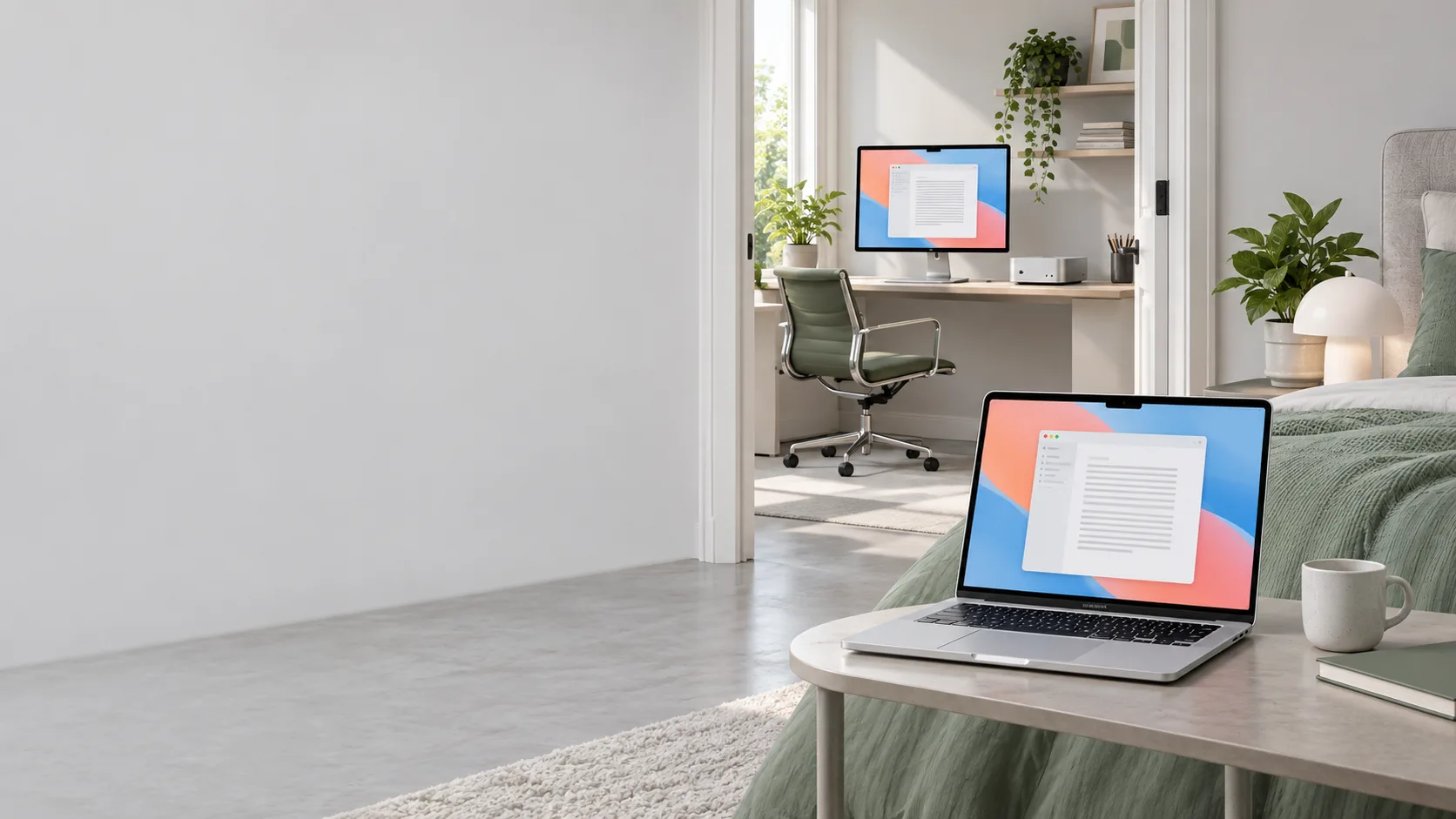
MACOS TRIAL Version 0.9.3
DeskJoin Remote
Your Mac mini in the study.
You, in the bedroom.
Windows and macOS can be the controller or the computer being controlled. Android and iOS work as controllers.
Universal app · macOS 12.3 or later · Local network only
DOWNLOADS
Download DeskJoin Remote.
Windows and macOS support both roles. Android, iPhone, and iPad are Controllers only.
Windows
Controller and controlled computerWindows 10 or 11 · x64 · Version 0.7.0Download WindowsAndroid
Controller onlyAndroid 10+ · Version 0.3Download AndroidiPhone and iPad
Controller onlyiOS and iPadOSPublic download link not listed yetChoose each device's role.
The Controller is the device in front of you. The controlled computer is where your apps and files stay.
Use Windows or macOS on either side of the connection. Android and iOS can view and control another computer, but cannot be controlled remotely.
DEVICE ROLES
Controller and controlled computer.
Choose the role that each device will have in the remote session.
01
Controller
The device you use to see the remote screen and send keyboard, pointer, or touch input.
- Windows
- macOS
- Android
- iOS and iPadOS
02
Controlled computer
The computer that runs your apps, keeps your files, and shares its screen with the Controller.
- Windows
- macOS
Windows and macOS support both roles. Android, iPhone, and iPad are Controller-only and cannot be controlled remotely.
THE HOME SETUP
Two rooms. One desktop within reach.
This first look focuses on a MacBook and a Mac mini connected to the same home network.
Your MacBook
See the Mac mini's screen here. Use the keyboard and trackpad in front of you to interact with its apps.
Where you see and control
Your Mac mini
Keep your desktop computer where it belongs. This is the Mac running the apps and holding the files you are working with.
Where the work runs
Install DeskJoin Remote on both Macs. The Mac being controlled must be awake and allow Screen Recording and Accessibility access. This trial does not provide remote wake, internet relay, clipboard sharing or file transfer.
Windows setup.
15 minutes per Host session
The PC sharing its desktop disconnects after 15 minutes. You may reconnect to start another session. Host starts disabled; enable it to allow paired devices to connect. Press Alt+Shift+F12 to disconnect immediately and disable Host.
Install and connect
On the PC you want to access, select Enable this Host. On the controller, choose a nearby device, then View only or View and control. Compare the pairing codes on both computers and accept matching codes. Select Include audio before connecting if you want remote system sound.