
Use an iPad to control an iMac.
Leave your iMac at your desk. Bring its desktop to your iPad while you relax in another room.
iPad app coming soon. The iOS and iPadOS edition is not available yet. This is a preview of the intended workflow, with steps to prepare your iMac.
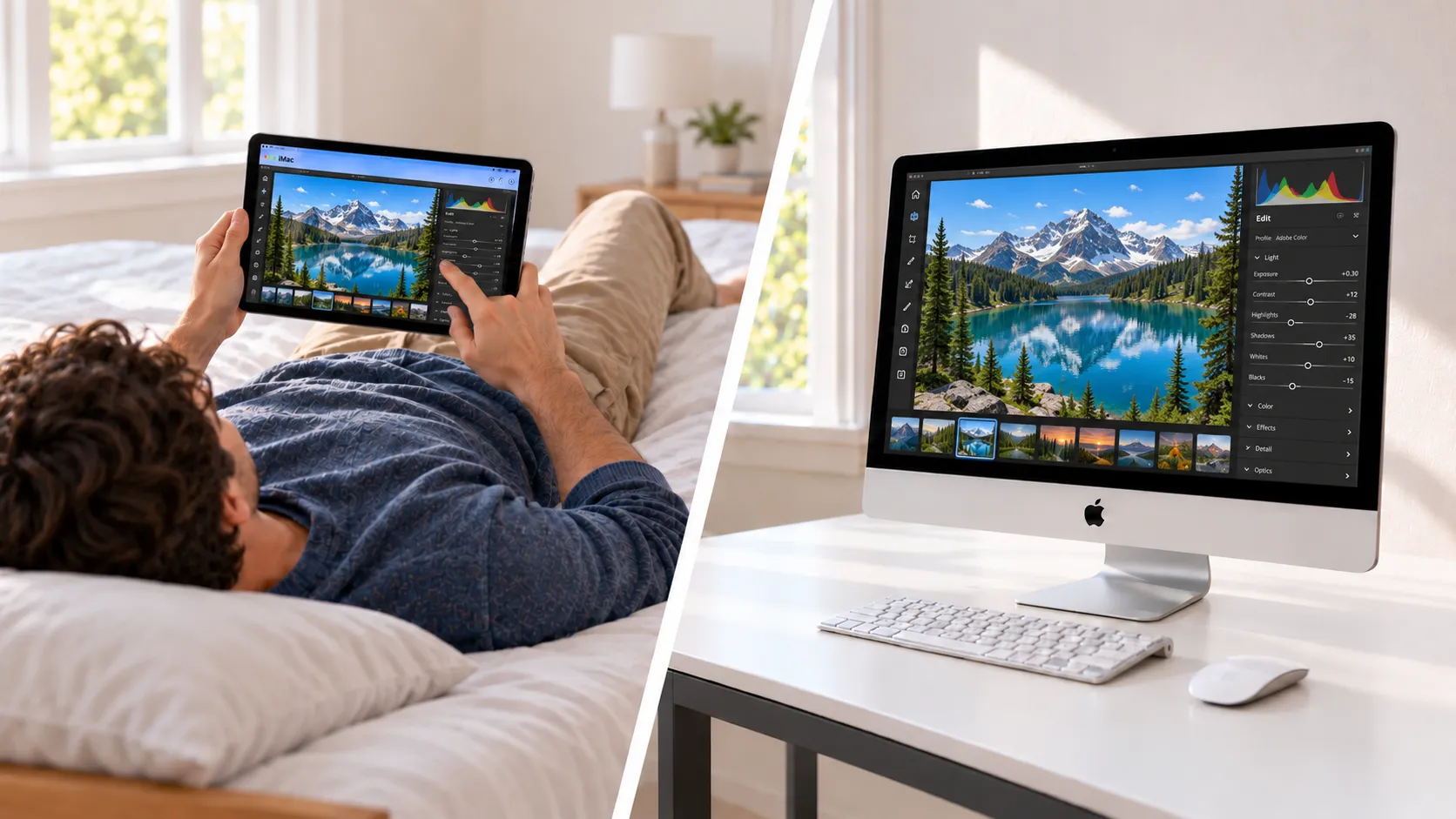
Your Mac apps, on your iPad's screen.
The iMac runs your apps and keeps your files. The iPad is the controller: it displays the remote desktop and sends your input back to the Mac. You do not need to move your project to an iPad app to continue working with it.
Review a photo, check a document, or return to a project left open at your desk. The intended setup keeps both devices on the same trusted home network, so you can change rooms without moving the iMac.
Prepare your iMac for remote access.
- Install the Mac app. Use a compatible iMac running macOS 12.3 or later. Download DeskJoin Remote, log in to macOS, and open the app.
- Allow screen and input access. Grant Screen Recording and Accessibility permissions when requested so the app can share the desktop and accept remote input.
- Keep the iMac reachable. Leave the computer awake and DeskJoin Remote running. The iPad and iMac must be able to reach each other on the same local network. Guest Wi-Fi that isolates devices can prevent a connection.
Once the iPad edition is available, install a compatible version on the iPad and follow its discovery and pairing prompts. Check that the verification codes match before accepting a new pairing. Final iPad requirements and controls will be listed with the release.
DeskJoin Remote does not wake a sleeping iMac. After a restart, local login or disk unlock may be needed before the app can run.
Stay on a trusted local network.
This is local-network remote desktop, not access to your home iMac over the internet. Keep both devices on a private network you trust.
The current desktop releases protect pairing and controls with TLS, but screen video uses a separate connection and is not encrypted. Do not treat this as full-session encryption. Check the security details and the iPad release information before use.
Read the security details →iPad and iMac remote desktop FAQ
Can I download DeskJoin Remote for iPad now?
Not yet. The iOS and iPadOS app is not available. This article introduces the intended iPad-to-iMac workflow and the Mac setup you can prepare in advance. Check the Downloads section for current availability.
Is this an iPad second-display setup?
No. Remote desktop shows and controls the iMac's existing desktop. It does not add an extended display. DeskJoin Screen is the separate product for using an iPad as a second monitor.
Can I control my iMac away from home?
DeskJoin Remote is designed for devices on the same reachable local network. It does not provide an internet relay or remote wake. The iMac must remain awake and running the app.
See available platforms. The iPad edition is not available yet.