
Local Network Remote Desktop
Use your computer from another room. DeskJoin Remote connects your devices directly over the same local network, with encrypted pairing and controls.
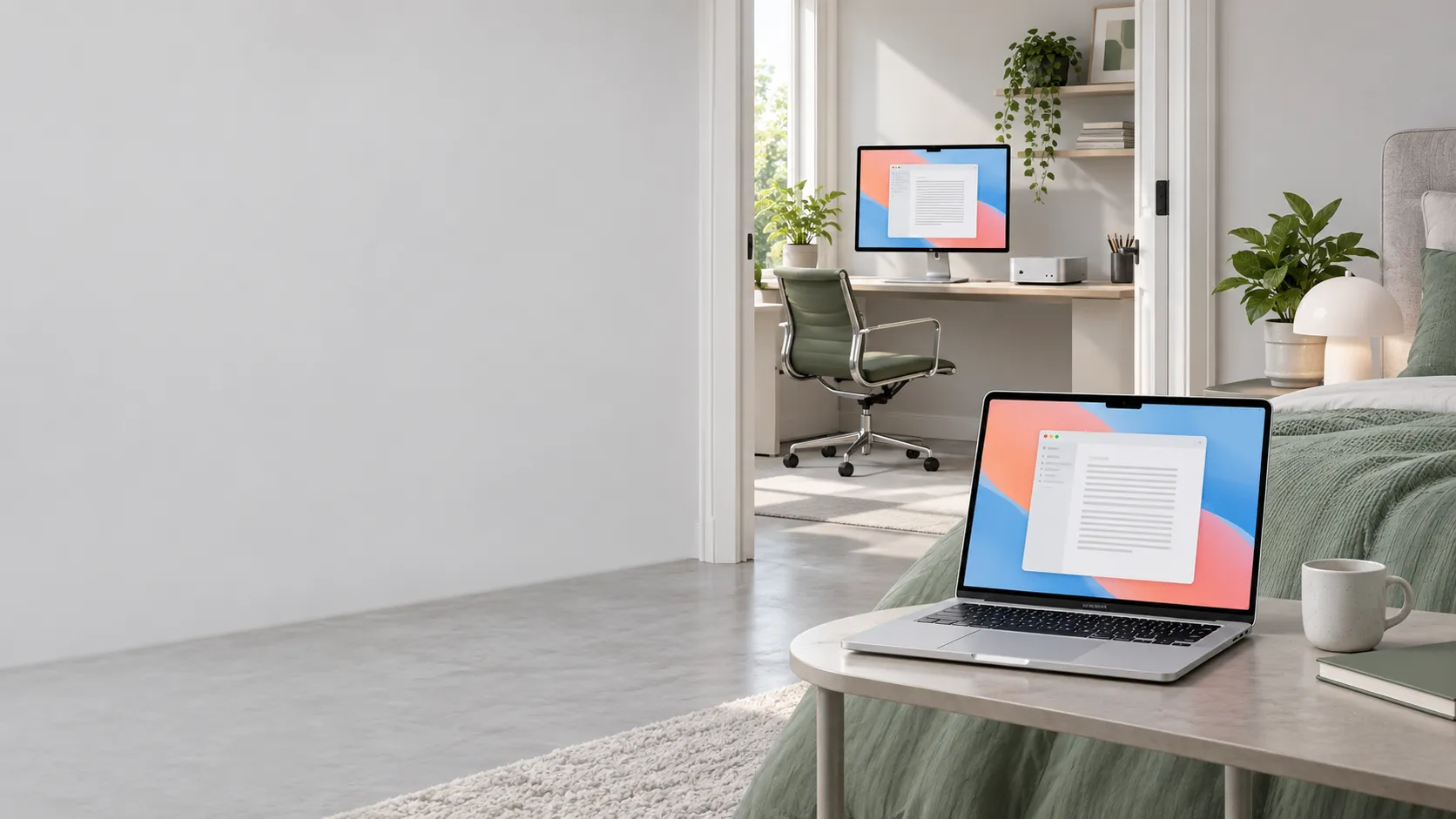
Your desktop stays on your local network.
Your apps run on the computer you connect to. DeskJoin Remote brings its screen to your other device and sends your keyboard and pointer input back. Use a MacBook to access a Mac mini in another room, or an Android device to control a nearby Windows PC.
Devices must be able to reach each other on the same trusted local network, through Wi-Fi or Ethernet. Remote sessions connect directly, without a DeskJoin relay or a product account. This is not an internet remote-access service.
Encrypted pairing and controls.
DeskJoin Remote uses TLS to protect pairing, control messages, keyboard and pointer input, and supported system audio. Compare the verification codes on both devices before accepting a new pairing. Remembered device identities are checked on later connections.
Screen video is not encrypted. The documented macOS 0.9.5 and Windows 0.8.1 releases send video over a separate, token-authorized local connection. This is not full-session encryption. Use a trusted, secured local network, not public or shared guest Wi-Fi.
Read the security details →Connect, pair, and keep your computer awake.
- Install compatible versions of DeskJoin Remote on both devices and connect them to the same local network.
- Enable the Host on the computer you want to access and grant the required screen and input permissions.
- Choose the nearby computer on your controller, compare the pairing codes, and accept matching codes.
Keep the Host running and awake while you use it remotely. DeskJoin Remote does not provide remote wake.
Set up a Mac mini without a monitor →