
Control a Windows laptop from an Android tablet.
Keep your notebook on the desk. Use its Windows desktop from your Android tablet in another room.
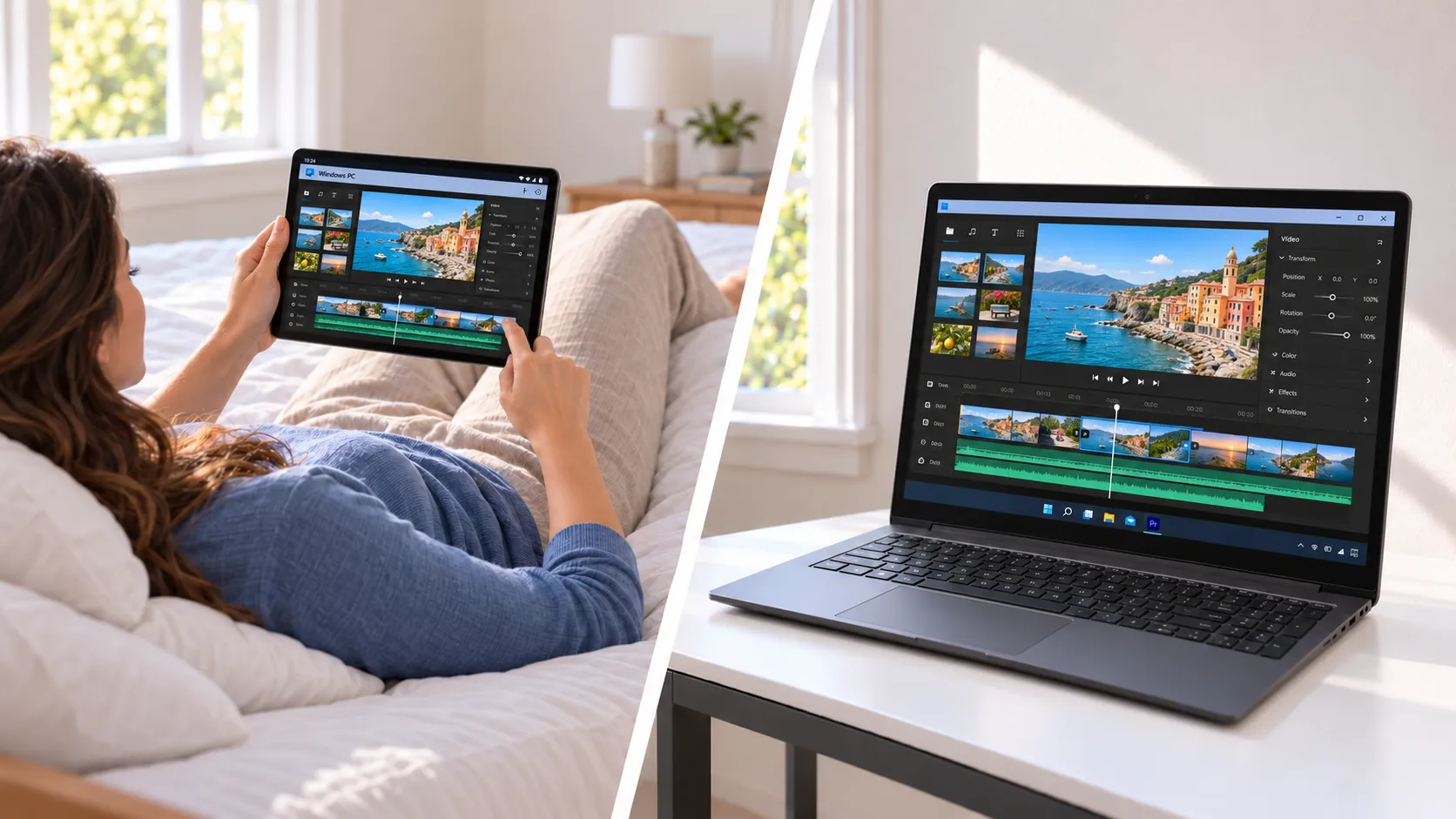
Your Windows apps stay on your notebook.
DeskJoin Remote brings the laptop's desktop to your Android tablet over the local network. The laptop runs the apps and keeps the files; the tablet displays the screen and sends touch and keyboard input.
Check a document or return to a project without carrying the laptop to the sofa or bedside. You are operating the existing Windows session, not installing Windows apps on Android or transferring the project to the tablet.
What you need
- An Android tablet running Android 10 or later.
- A Windows x64 laptop running Windows 10 version 2004 or later, or Windows 11.
- Compatible DeskJoin Remote apps on both devices.
- A trusted local network where the devices can reach each other.
Windows development preview: Host sessions currently last up to 15 minutes. You can reconnect for another session. Test your tablet and laptop together before relying on them for work; broader hardware interoperability checks are still ongoing.
How to connect your Android tablet to Windows
- Install both apps. Get the Windows installer and Android APK from the DeskJoin Remote downloads. Open the APK on your tablet. If Android requests permission to install from your browser or file manager, allow that source for the installation and turn the permission off afterward.
- Enable the Windows Host. Open DeskJoin Remote on the laptop and select Enable this Host. Host starts disabled after launch. Allow the app through Windows Firewall on your trusted private network only.
- Find and pair the laptop. Open DeskJoin Remote on the tablet, choose the discovered Windows notebook, and follow the pairing prompts. Compare the six-digit verification codes and confirm only when they match on both devices.
- Connect with control enabled. Choose a control session rather than view-only mode to interact with Windows from the tablet. Leave the laptop awake and the Host running while you use it.
If the notebook does not appear, check that Host is enabled and both devices are on the same reachable network. Guest-network isolation or firewall rules can block discovery and connections. Do not disable the firewall as a workaround.
Local access, with clear limits.
DeskJoin Remote does not provide an internet relay or remote wake. A sleeping laptop cannot accept a session, and access from outside your home network is not the workflow described here. Clipboard sharing and file transfer are not included.
Pairing and controls use TLS, but the current Windows release sends screen video over a separate, token-authorized connection that is not encrypted. This is not full-session encryption. Use a trusted, secured local network.
How local-network remote desktop works →Android tablet and Windows laptop FAQ
Can an Android tablet control a Windows notebook?
DeskJoin Remote provides an Android Controller and a Windows Host for local-network remote desktop. The notebook runs your Windows apps while the tablet displays its screen and sends input. Use compatible releases and test your device combination; the Windows edition is a development preview.
Can I close the laptop lid while connected?
Only if the laptop stays awake and continues to provide a usable display. Closing the lid can put Windows to sleep and disconnect the session. Start with the lid open, check the laptop's power settings, and test before relying on a closed-lid setup. DeskJoin Remote does not provide remote wake.
Does this turn my Android tablet into a second monitor?
No. DeskJoin Remote displays and controls the Windows laptop's existing desktop. It does not extend the Windows desktop onto an additional screen. Android is a Controller only; the Windows laptop cannot remotely control the tablet through DeskJoin Remote.
Get the Windows app for your notebook and the Android APK for your tablet.