
Control a headless Mac mini from a Windows laptop.
Leave the Mac mini on your desk without a permanent monitor. Use your Windows notebook's screen, keyboard, and trackpad to operate it from another room.
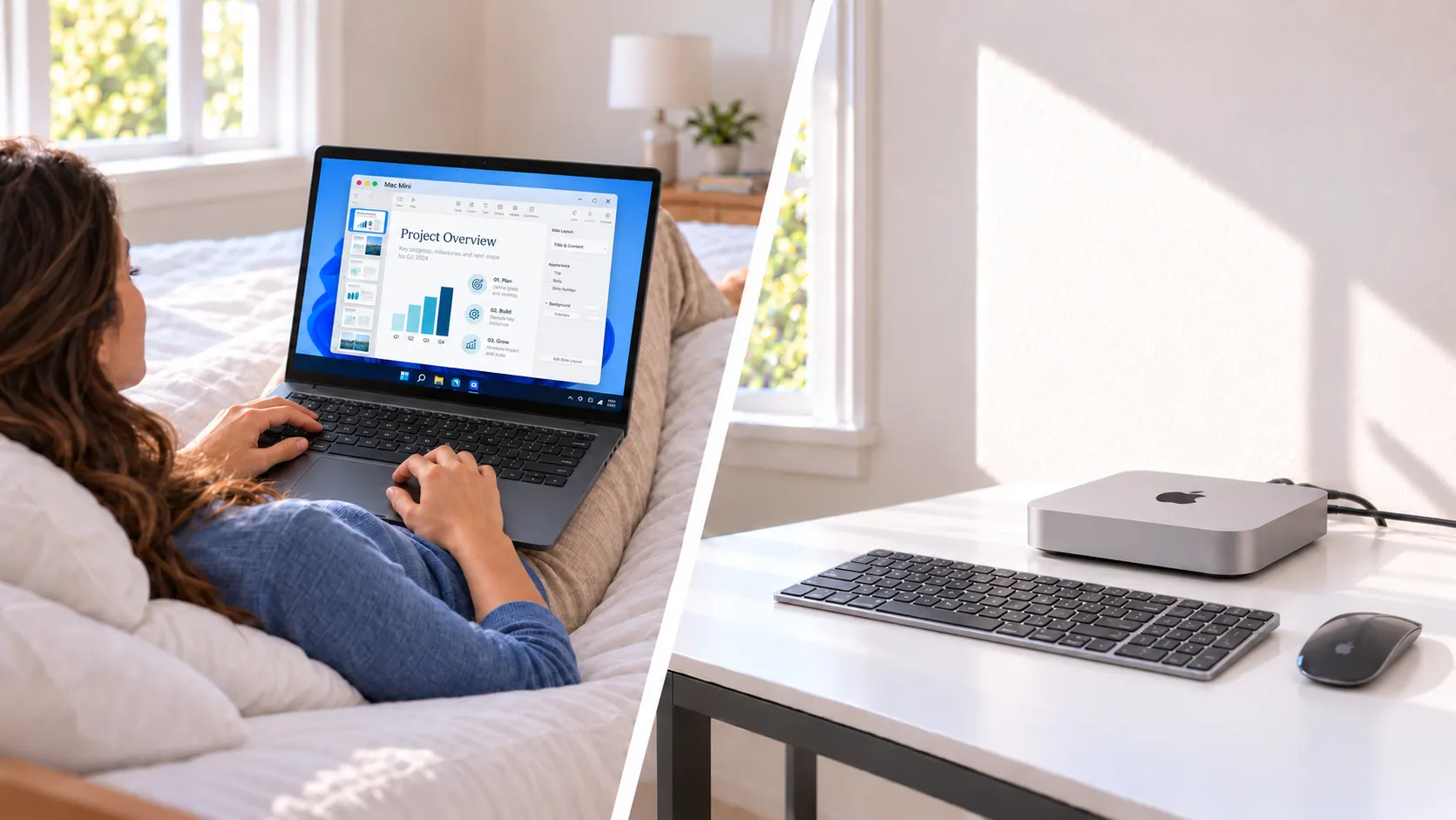
Mac apps on your Mac. Controls on your Windows laptop.
A headless Mac mini is a Mac mini used without a monitor attached. DeskJoin Remote displays its desktop on your Windows computer and sends your keyboard and pointer input back over the local network.
Your projects and apps stay on the Mac mini. You can return to a document or use a Mac app without moving the Mac or keeping a separate display on the desk. The Windows notebook remains its own computer; you can switch back to your Windows apps when you finish.
What you need
- A Mac mini running macOS 12.3 or later.
- A Windows x64 notebook running Windows 10 version 2004 or later, or Windows 11, with a D3D11 and Direct2D-compatible hardware GPU.
- Compatible versions of DeskJoin Remote on both computers.
- A trusted local Wi-Fi or Ethernet network that both devices can reach.
- A monitor, keyboard, and mouse for the Mac mini's initial setup and recovery when needed.
Set up with a monitor first. A monitor-free daily workflow does not replace first-time macOS setup, permission prompts, or pairing approval. The Windows app is a development preview; test your Mac and Windows combination before relying on it.
Set up Windows-to-Mac remote control
- Prepare the Mac mini. Temporarily connect a monitor and input devices. Finish macOS setup, log in, install DeskJoin Remote, and grant Screen Recording and Accessibility access.
- Prepare the Windows notebook. Install DeskJoin Remote from the Downloads section. Connect it to the same trusted local network as the Mac mini. Allow the app through Windows Firewall only on your private network.
- Pair while both screens are available. Make the Mac mini available as the Host. From the Windows app, select the discovered Mac mini and choose View and control. Compare the six-digit verification codes and confirm matching codes on both computers.
- Test without the Mac mini's monitor. Check that the Mac desktop appears and keyboard and pointer input work. Disconnect the monitor, then reconnect from Windows and test again before putting the display away.
If the remote desktop becomes blank or input stops working, reconnect the monitor and check the Mac's display state, permissions, and app status. Keep local access available until your headless setup is working reliably.
Keep the headless Mac mini reachable.
The Mac mini must remain awake, logged in, connected to the network, and running DeskJoin Remote. Review its sleep settings for the time you plan to connect. DeskJoin Remote does not provide remote wake.
You can configure the app to open at login, but that does not unlock the startup disk or log in for you. Test what happens after a restart with the monitor still available. If FileVault needs a local unlock, remote access cannot begin until that step is complete.
You do not need to turn off FileVault or enable automatic login to use DeskJoin Remote after a manual login. Keep your security protections and plan for local recovery after a restart or power loss.
A local connection, not internet remote access.
This workflow uses devices on the same reachable local network. DeskJoin Remote does not provide an internet relay, clipboard sharing, or file transfer.
Current desktop releases protect pairing and controls with TLS, but screen video uses a separate, token-authorized connection that is not encrypted. This is not full-session encryption. Use a trusted, secured local network.
Read the security details →Windows and headless Mac mini FAQ
Can I control a Mac mini from a Windows laptop without a monitor?
After setup, DeskJoin Remote can bring the Mac mini's desktop to a compatible Windows laptop over the local network. Prepare and pair the Mac with a monitor attached first, then disconnect the monitor and test that remote viewing and input still work. The Mac must be awake, logged in, and running DeskJoin Remote.
Can I use a Windows tablet instead of a notebook?
A Windows tablet must meet the same requirements as the Windows desktop app: Windows 10 version 2004 or later, or Windows 11, on x64, with a compatible D3D11 and Direct2D hardware GPU. Use a keyboard and pointing device for the desktop workflow described here. Do not assume that an ARM-based Windows tablet is supported by the current x64 preview.
What happens if the Mac mini restarts or loses power?
Remote access is unavailable until macOS has started, the user session is ready, and DeskJoin Remote is running again. FileVault may require a local disk unlock after startup. Keep a way to reconnect a monitor and input devices; DeskJoin Remote cannot unlock FileVault or bypass macOS login.
Is the Windows laptop acting as an HDMI monitor?
No. DeskJoin Remote sends the Mac desktop over the local network and returns keyboard and pointer input. It does not use the laptop's HDMI port as a video input, extend the Mac desktop, or run macOS on the Windows laptop.
Install the macOS app on your Mac mini and the Windows app on your notebook.